
About Sensitive Data
If you are collecting sensitive data in your form, you can use FormAssembly's Sensitive Data Feature to indicate which specific fields contain that data. This is useful for compliance with the GDPR, HIPAA, or forms that collect payment information. Learn more about FormAssembly's security.
When you mark a field as sensitive, you can choose what type of data you are collecting:
- Credit Card Information (Credit Card Number and CVV Code)
- General Sensitive Data
- Password
- Personally Identifiable Information (PII)
- Protected Health Information (PHI) (available on select plans)
If banking data, account numbers, passport numbers, and social security numbers are not marked as sensitive, this data will show in your responses.
Mark fields as Sensitive
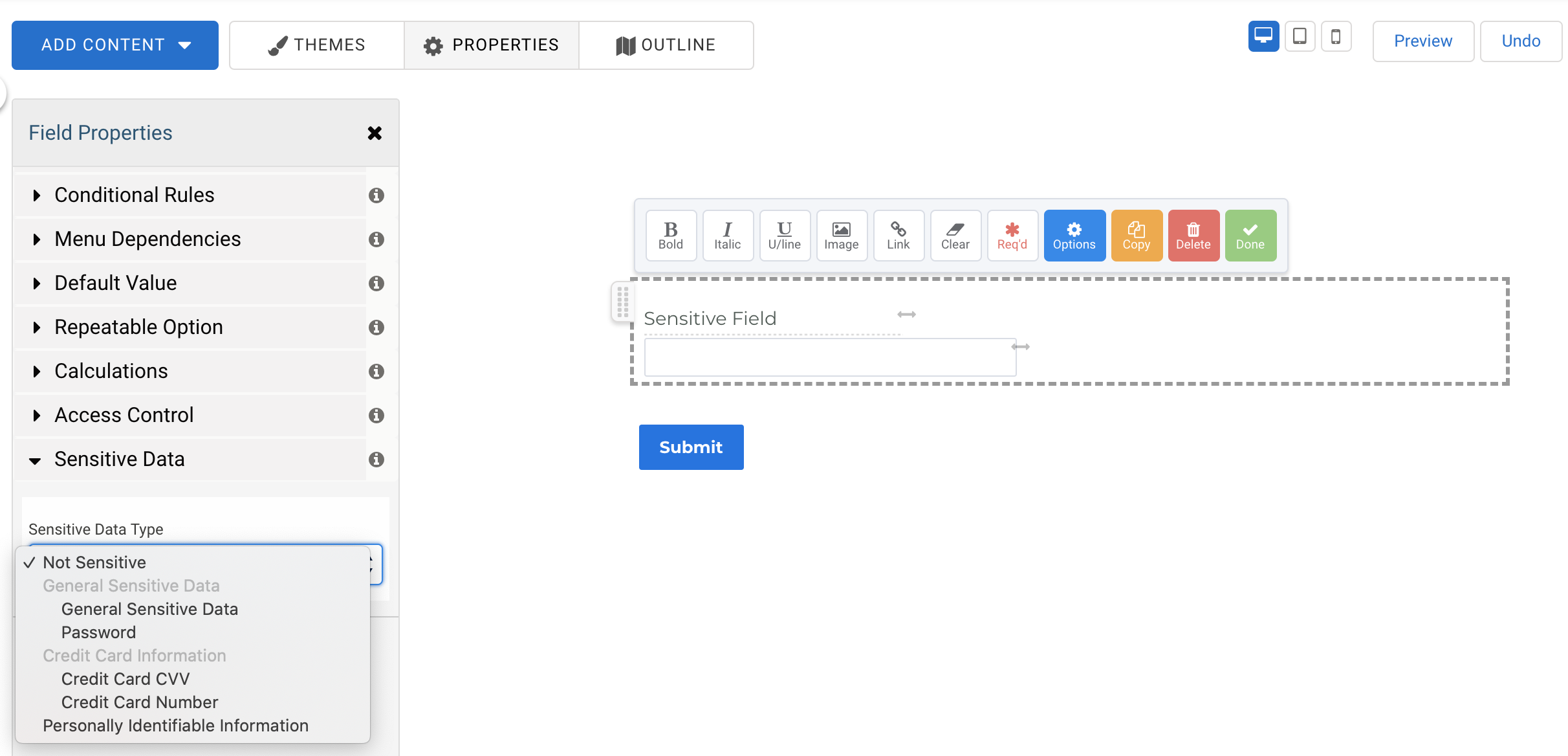
Add Sensitive Data settings in the Form Builder by completing the following steps:
- Select the question that will be used to collect sensitive data.
- Click on the Options button in the editing toolbar.
- In the Field Properties sidebar, click the Sensitive Data section.
- In the Sensitive Data Type drop-down menu, choose the option for your field.
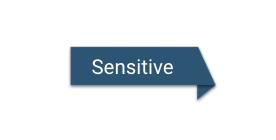
You will see a flag on the Form Builder canvas labeled "Sensitive" next to any field marked as Sensitive:
Any cardholder data that is marked as Sensitive will be masked by default in your responses and in any connectors you may be using. All other types of sensitive data will not be masked on Basic, Essentials, and Team plans. Learn more about sensitive data management on Enterprise and Government plans.

Personally Identifiable Information
You can mark certain fields as collecting Personally Identifiable Information (PII).
PII is any information that can be used to identify an individual, such as a name, email address, social security number, or driver's license number.
Unlike credit card data fields, fields that are marked as containing PII will be saved in your responses as submitted. They will not be masked in the response data.
General Sensitive Data
There may be certain fields you wish to mark as containing sensitive data, even if they are not PII, PHI, or credit card information.
For any information you would like to mark as sensitive that does not fall into another category, you can use the "General Sensitive Data" category.
Unlike credit card data fields, fields that are marked as containing General Sensitive Data will be saved in your responses as submitted. They will not be masked in the response data.
Password Sensitive Data
Adding a password field will now automatically mark the field as sensitive. Passwords will be masked for respondents on the Review page. Learn more about enabling Review Before Submit.
Protected Health Information for Enterprise and Government Plans
You can mark certain fields as collecting Protected Health Information (PHI).
For select plans, this feature enhances data governance and security. Administrators will now have control over which users can create and edit forms collecting specific types of sensitive data, and which users can view and edit responses with specific sensitive data types.
Respondent Data Relationship Classification
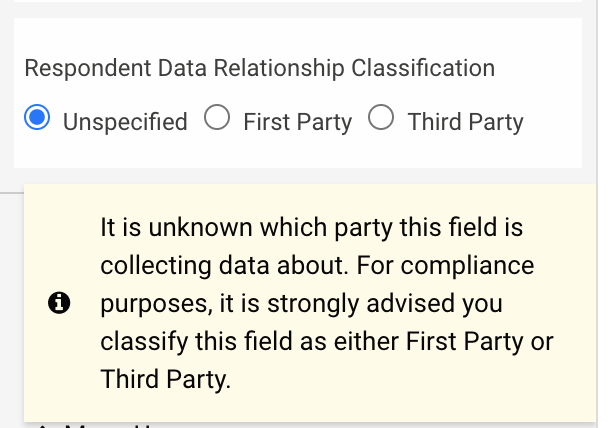
For every field marked as sensitive, you have the option to define the respondent data relationship classification.
In accordance with the GDPR, it's helpful to label the respondent data relationship. This will allow you to define if the person filling out the form is completing the form for themselves, for a third-party person, or if it is unknown.
Unspecified: It is unknown which party this field is collecting data about. For compliance purposes, you may classify this field as either First Party or Third Party.
First Party: This field will collect data about the person filling out this form.
Third Party: This field will collect data about someone other than the person filling out this form.
Using the Save and Resume Feature
If a user saves and resumes a form, the fields marked as "Credit Card Number" or "CVV Code" will be cleared. The previous information that the user entered into the field will no longer be available.
PII, PHI, and General Sensitive Data can be resumed with the stored values displayed, like other fields.
Sensitive Data Management on Enterprise and Government Plans
User Role Permissions
For enhanced data governance and security, administrators on select plans can manage who can collect, view, and edit responses containing sensitive data. These controls are available through the Admin Dashboard. Learn more about managing user permissions.
Masked Reports and Responses
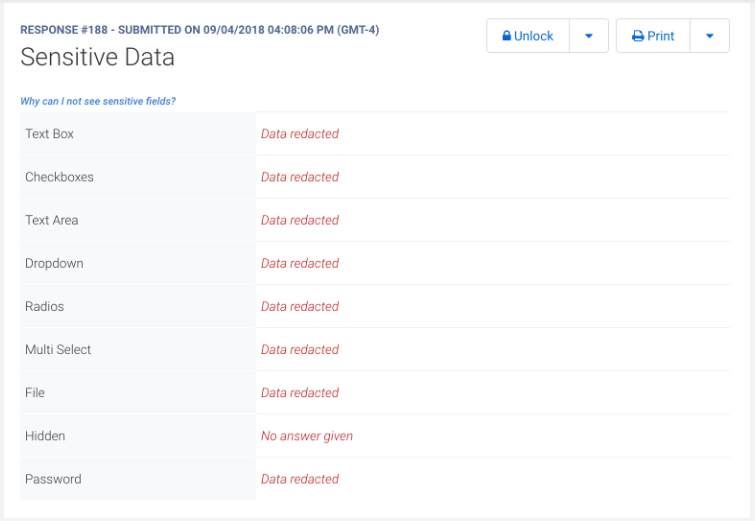
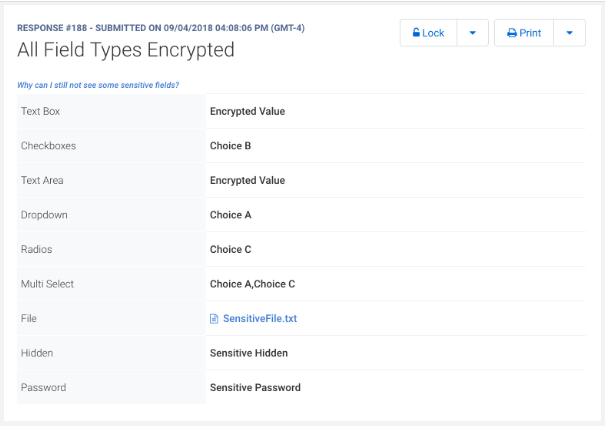
Sensitive data will be locked (masked) by default within responses and reports, and only accessible for specified lengths of time.
Sensitive data will also be secured and redacted in response aliases across Thank You pages, email notifications, and auto-responders. Individual field aliases, however, will pass sensitive data unmasked, so you can use them in calculations and formulas.
Locked (Masked) Data:
Unlocked Data:
Logging Access to Sensitive Data
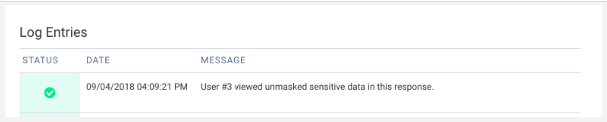
When data has been unlocked, a log entry will show the date, time, and the person who unlocked and accessed the data.
Sensitive Data in Responses
In most plans, PII and General Sensitive data will remain exposed in responses. Passwords and credit card data will be masked.
In select plans, administrators will have more control over which data is visible. For these plans, form owners and account administrators will be able to see all of the collected data (besides the standard masked password and credit card fields) in responses containing sensitive data. Other users will only be able to view the response data that they have permission to view.
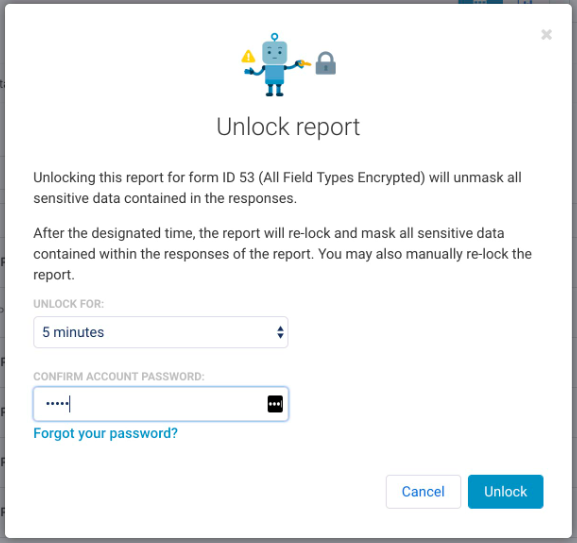
If your administrator grants you the needed permissions to view sensitive data, you can unlock the report.
When viewing response data on one of these plans, users will see each Response Card marked as "locked" if it contains sensitive data.

The Response Card can be unlocked by the form owner, administrators, and users with the correct permissions.
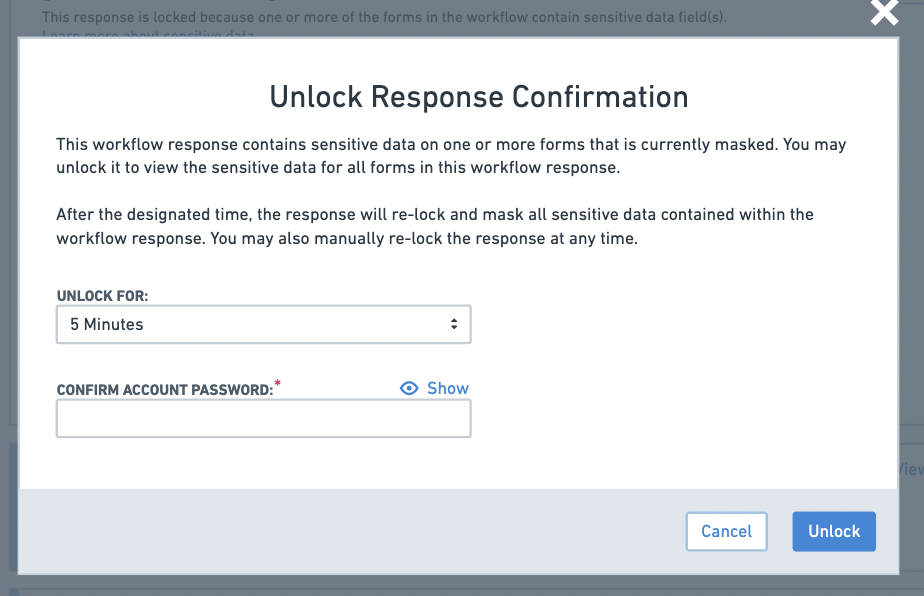
Once the response has been unlocked, permission-restricted sensitive data will be visible for the set amount of time. This means that if the user does not have the necessary permission to view PII, then data marked as PII will still be shown as "redacted" after unlocking the response card, while other sensitive data that they do have permission to view will become visible. This will not include credit card fields and password fields, which will always remain masked.