
Overview
With the Google Sheets Connector, you can utilize FormAssembly's sophisticated features and have your data readily available in Google Spreadsheets (also known as Google Sheets).
This means no more manual exporting, let the connector do it for you!
Connector Properties
Refer to our Workflow-native Connectors article for general configuration information.
Configuration Tab

Destination Spreadsheet
Select an existing spreadsheet on your Google Drive. If you do not see your desired spreadsheet in the list, click Refresh Lists at the bottom of the Configuration tab.
Destination Tab
Enter the name of an existing tab from your destination spreadsheet, or leave it empty to automatically assign Sheet1 as the Destination Tab. Alternatively, entering the name of a tab that does not exist in the destination spreadsheet creates a new tab with the name entered.
Field Mapping
Mapping form fields to destination tab columns can be completed automatically and manually.
To quickly map all form fields, click Add all standard fields. This will automatically map form fields in the order that they appear on the form to each column. Note that clicking Add all standard fields leaves out the file upload field metadata.
To manually add a form field or value, click Add Another or adjust an existing field or value mapping.
- Use the dropdown to select whether to map a "Form Field" or "Value or Formula".
- Form Field: Use the list to search for and select a form field from the forms included in the workflow.
- Note: Available form fields are all fields from forms that occur before the Google Sheets Connector in the workflow.
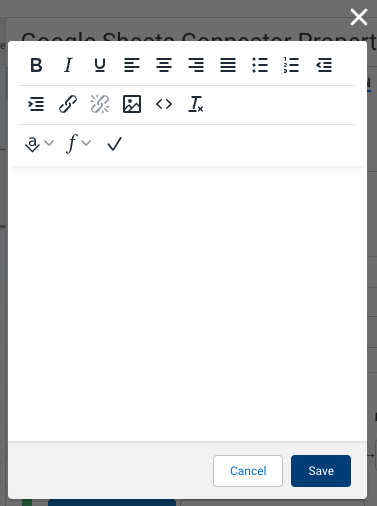
- Value or Formula: Enter a value as text or open the formula editor to use the formula builder to add workflow aliases. Click the formula button to open a WYSIWYG editor for further customizations to your value.
- Form Field: Use the list to search for and select a form field from the forms included in the workflow.

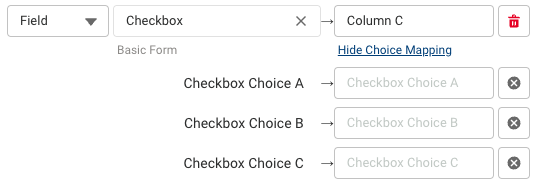
Choice Mapping
When mapping fields with multiple choices (checkboxes, radio buttons, etc.), the Edit Choice Mapping option becomes available. Use this to record custom values in your spreadsheet depending on the choice selected.
Repeatable Fields
When repeatable elements are detected, an option to further configure the behavior of your spreadsheet will appear. Repeatable elements can be added to your spreadsheet as new rows or comma-separated values within a single cell. By default, each submission is contained within a single row, and each repeated element is contained within a single cell as comma-separated values. This behavior can be changed to create a new row each time the selected section is repeated.
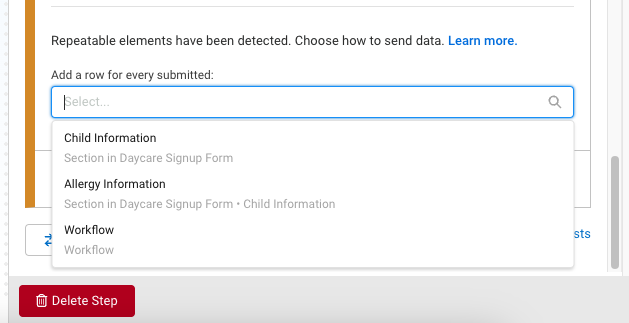
Click the X to clear the default ‘Workflow’ selection, and choose a new option from the menu.
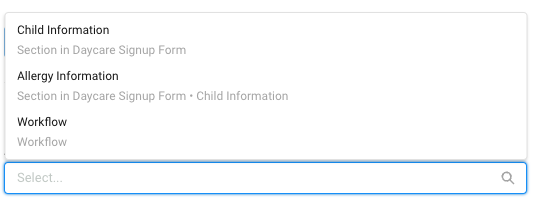
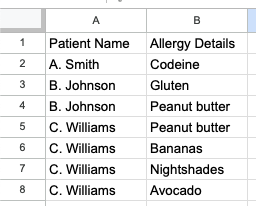
When a repeatable section is selected from the menu, for each instance, the repeatable section is submitted, and a new row will be created for the workflow response. For example, if the repeatable section ‘Allergy Details’ is selected for a patient intake form, for each allergy that is submitted for a patient, a new row will be entered into the spreadsheet. In this patient intake form example, the patient information accompanying each allergy submitted will be copied into the appropriate cells of each line, so there will be no empty cells for lines with data. Because the information is duplicated where necessary, information can be sorted with ease within Google Sheets.
View Responses in Your Google Spreadsheet
To see the connector in action, submit a test response.
Log in to your Google account and either open the existing spreadsheet where you told the connector to place your data or take a look at the newly created spreadsheet.
Responses are automatically added to the spreadsheet upon submission.
Known Behaviors
Please note the following known behaviors with the Google Sheets Connector:
- The Workflow Architect (the creator of the workflow) must type to input the destination tab name to map data to an existing tab.
- If a value for the destination tab is not entered and there is no default tab named Sheet1, upon running, the connector will create a new tab called Sheet1.
- The Google Sheets Connector will insert headers to the destination tab only when the tab contents are empty. If the form is changed or the connector is later configured to include additional fields, any recently added or new field labels will not be reflected in the spreadsheet headers.