The FormAssembly Formula Engine and Editor
As FormAssembly users, you have the option to dynamically customize items like email templates, thank you messages, and display notifications using our FormAssembly formula engine. Additionally, you can use formulas within many of our connectors to achieve more advanced customization.
For calculated fields within the form, see Form Calculations.
Formula Structure
The syntax of our formulas is very similar to Excel formulas, but there are some slight differences. In general, each formula consists of a field alias, a function, and a comparison operator, all of which are outlined below.
To make the process of formula building easier, we have created a Formula Editor, which allows you to design your formulas in a simpler, dropdown environment, rather than having to write them from scratch.
Aliases and the Formula Editor
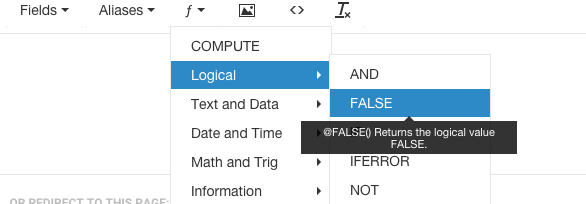
As mentioned earlier, we have created a Formula Editor to make the process of formula creation easier on your end. To use the Formula Editor, look for fields, aliases, or f-value dropdown menus.

Additionally, the Formula Editor can be found by clicking the f icon in a number of fields.

When creating a formula, you can reference fields and values from your forms and workflows using aliases.
The FormAssembly Formula Editor will automatically be populated with these values and aliases. To find a field alias from a form, click on the fields dropdown menu, and you will see your available options.
To insert one of our generic aliases, click on the Aliases dropdown menu.
Finally, to find functions to use in your form, you can click on the f-value dropdown menu for all of the formula-building logic options.
Functions
The engine supports most functions found in MS Excel. The function must be spelled in uppercase and start with the @ character. Here's a list of the most useful functions:
Logic
@IF | @IF(condition,when_true,when_false)Performs a logical test and returns either the second parameter (if true) or the third parameter (if false). Example: @IF(%%field_a%%>5,"GOOD","NOT ENOUGH") |
|---|---|
@AND | @AND(condition 1,condition 2)Returns TRUE if both conditions are true, FALSE otherwise (logical AND). Example: @IF(@AND(%%field_a%%>5,%%field_b%%>10),"OK","NOT OK") |
@OR | @OR(condition 1,condition 2)Returns TRUE if at least one condition is true, FALSE if all conditions are false (logical OR). Example: @IF(@OR(%%field_a%%>5,%%field_b%%>10),when_true,when_false) |
@NOT | @NOT(condition)Returns TRUE if the condition is false, FALSE otherwise (logical NOT). Example: @IF(@NOT(%%field_a%%>5),"OK","NOT OK") |
Arithmetic
@COMPUTE | @COMPUTE(%%field_A%%+%%field_B%%)Performs arithmetic calculations on form fields. |
|---|---|
@MAX | @MAX(number1,number2,...)Returns the largest value from the numbers provided. |
@MIN | @MIN(number1,number2,...)Returns the smallest value from the numbers provided. |
@ROUND | @ROUND(number,decimal_places)Returns a number rounded to a specified number of decimal places. |
String Operations
@CONCATENATE | @CONCATENATE(string,string,...)Joins 2 or more strings together. Example: @CONCATENATE(%%tfa_firstname%%," ",%%tfa_lastname%%) |
|---|---|
@LEFT | @LEFT(text, number_of_characters )Extracts a number of characters from a string, starting from the left. Example: @LEFT(%%field_a%%,5) |
@RIGHT | @RIGHT(text, number_of_characters )Extracts a number of characters from a string, starting from the right. Example: @RIGHT(%%field_a%%,5) |
@MID | @MID( text, start_position, number_of_characters )Extracts a number of characters starting at any position. |
@FIND | @FIND( text1, text2,start_position)Returns the location of a substring in a string (case-sensitive). Returns #VALUE! if string not found. Example: @MID(%%tfa_email%%,@COMPUTE(@FIND("@",%%tfa_email%%)+1),
@COMPUTE(@FIND(".",%%tfa_email%%)-@FIND("@",%%tfa_email%%)-1)
(Returns the domain part of an email address). |
@CONTAINS | @CONTAINS( text, field )Returns true if text is inside of field. Otherwise, returns false. |
Date & Time
@LOCALNOW | @LOCALNOW()Returns the current date and time according to your language and time-zone settings. |
|---|---|
@LOCALTODAY | @LOCALTODAY()Returns the current date according to your language and time zone settings. |
@NOW | @NOW()Returns the current date as a timestamp. This can be passed to other date functions to extract the day, month, or year. |
@YEAR | @YEAR(date_value)Returns a four-digit year given a valid date. Example: @YEAR(@NOW()) |
URL Manipulation
@URLENCODE | @URLENCODE(query_string_param)Returns the RFC3986-encoded version of the string passed in. Example: http://www.tfaforms.com/123?tfa_Name=@URLENCODE("Mike Johnson")will output:http://www.tfaforms.com/123?tfa_Name=Mike%20Johnson |
|---|---|
@URLDECODE | @URLDECODE(query_string_param)Decodes RFC3986-encoded version of the string passed in. Example: http://www.tfaforms.com/123?tfa_Name=@URLDECODE("Mike%20Johnson")will output:http://www.tfaforms.com/123?tfa_Name=Mike Johnson |
@SUBSTITUTE | @SUBSTITUTE(base_string,match,match_replacement)Replaces all occurrences of match with match_replacement in base_string. Example: @SUBSTITUTE("One Two Three Four","Four","Five")will output:One Two Three Five |
Comparison Operators
A comparison operator can be used to compare two values in an @IF statement. The result is a logical value, either TRUE or FALSE.
Operator | Name | Example |
|---|---|---|
= | Equal to | @IF(%%field_a%%="A",when_true,when_false) |
> | Greater than | @IF(%%field_a%%>5,when_true,when_false) |
< | Less than | @IF(%%field_a%%<5,when_true,when_false) |
>= | Greater than or equal to | @IF(%%field_a%%>=5,when_true,when_false) |
<= | Lower than or equal to | @IF(%%field_a%%<=5,when_true,when_false) |
<> | Not equal | @IF(%%field_a%%<>5,when_true,when_false) |
Syntax Highlighter and Checker
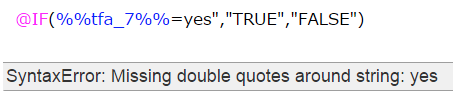
In the Formula Editor, you will find that certain functions and aliases will be highlighted in different colors. Additionally, if you create a formula with an error in it, a "SyntaxError" will pop up at the bottom of the window. These two tools are designed to help you build formulas more efficiently.
The Syntax Highlighter
To help you visually distinguish the functions from the aliases in your formula, the syntax highlighter will automatically color-code the elements. Depending on the element, you can expect the following colors:

If your element is red, it might be due to an incorrectly capitalized function or a misspelled alias. You should check for syntax errors at the bottom of the Formula Editor to help resolve any issues.
The Syntax Checker
At the bottom of the Formula Editor, you will find that the syntax checker pops up with various errors while you are creating your formulas. The syntax checker is designed to:
- Check your alias names to make sure that they are correctly formatted.
- Check your function names for correct spelling and capitalization.
- Check the number of function arguments.
- Check for cases where your formula may result in a nonsensical return.