
Overview
Salesforce Dynamic Picklists are multiple-choice questions that get their list of choices directly from Salesforce. Values are populated from Salesforce when the field is clicked by a respondent (unless there is a configured prefilled or default value), so the choices in your picklist always stay current without having to refresh the schema.

You can configure your Salesforce Dynamic Picklist to get its list of choices from:
- Salesforce Picklist Field
- Salesforce Object Lookup (Basic)
- Salesforce Object Lookup (Advanced)
-
When cloning a form with a Salesforce Dynamic Picklist, you will need to reconfigure the dynamic picklist on the clone. The field will be present, but the configuration will not.
-
We do not recommend copying the configured Salesforce Dynamic Picklist field within a form or adding a Salesforce Dynamic Picklist field to predefined content or a template.
-
Salesforce Dynamic Picklists do not work in conjunction with the No Overwrite feature.
-
Salesforce Dynamic Picklist fields are linked to the authenticated Salesforce user. If you change the form ownership or change the authenticated user for your dynamic picklist, you will need to re-authenticate the dynamic picklist field.
Requirements
To use Salesforce Dynamic Picklists, you will need:
- Permission to use the Salesforce Dynamic Picklist feature (controlled by your FormAssembly administrator)
Set Up a New Salesforce Dynamic Picklist
- Add a Drop-Down Menu field to your form
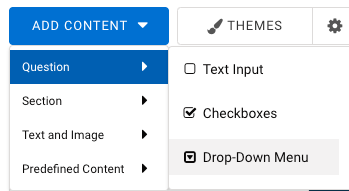
- Click on the field and select Choices
- Click Salesforce Dynamic Picklist
- Select your existing authorization or connect to a new account
Note: A new token is generated each time you select "Connect to Salesforce" and log into Salesforce, so please use existing authentications, if they're available, to preserve your limited tokens.
- Select your Choices Source by clicking on the Get choices from dropdown

- Salesforce Picklist Field
- This type pulls a Salesforce Picklist Field from the record you set in the dynamic picklist.
- Salesforce Object Lookup (Basic)
- This type pulls a Salesforce Record from the object you set in the dynamic picklist.
- Salesforce Object Lookup (Advanced)
- This type also pulls a Salesforce Record from the object you set in the dynamic picklist, through the use of SOQL.
- Salesforce Picklist Field
This information can be Salesforce records for that object, or a particular picklist included on the object.
Returning Multiple Salesforce Fields
If you would like to return two fields or more from Salesforce, make sure that you have added additional text input fields to your form before you begin mapping choices.
For example, if you would like to return a picklist of Account Names and have an additional field filled with the related Account ID, you will need to have your dynamic picklist field added to the form, along with a text input field for the Account ID, before you begin mapping.
Salesforce Picklist Field
- Select Salesforce Picklist Field from the Get choices from dropdown
- Select a Salesforce Object from the Salesforce Object dropdown
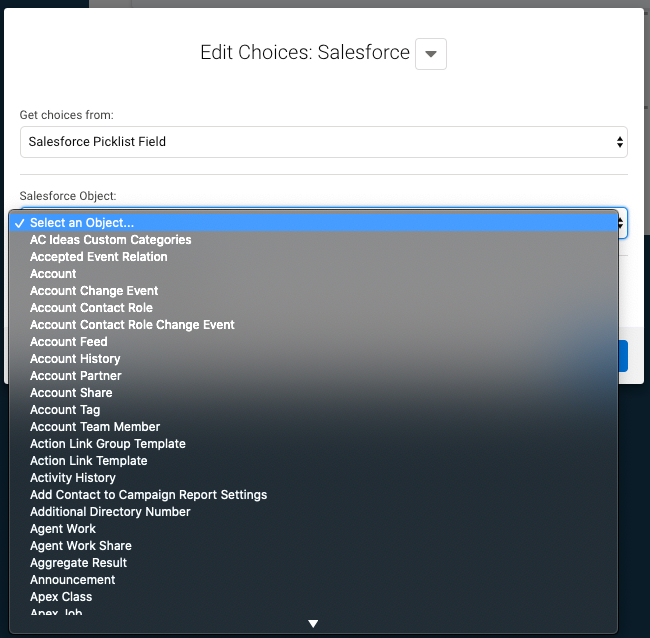
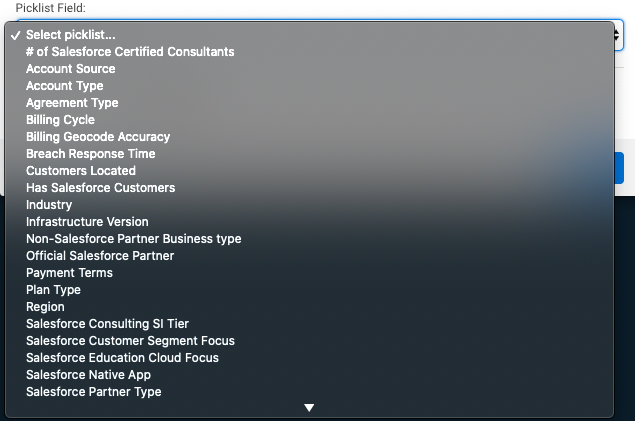
- Select the desired field from the Picklist Field dropdown
- Choose to Enable or Disable the Allow Free Responses toggle
- If you'd like to allow respondents to enter information into your Salesforce Dynamic Picklist, select Enable.
- Choose to Enable or Disable the Refresh Salesforce Connection toggle
- Enabling this toggle will allow the Salesforce connection to refresh (thereby clearing the cache) to ensure that previously selected values in a dropdown do not display again when the form is loaded at a later time.
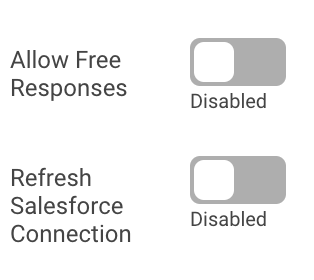
- Enabling this toggle will allow the Salesforce connection to refresh (thereby clearing the cache) to ensure that previously selected values in a dropdown do not display again when the form is loaded at a later time.
- Click Next
- You'll now see a preview of the data retrieved in your Salesforce Dynamic Picklist
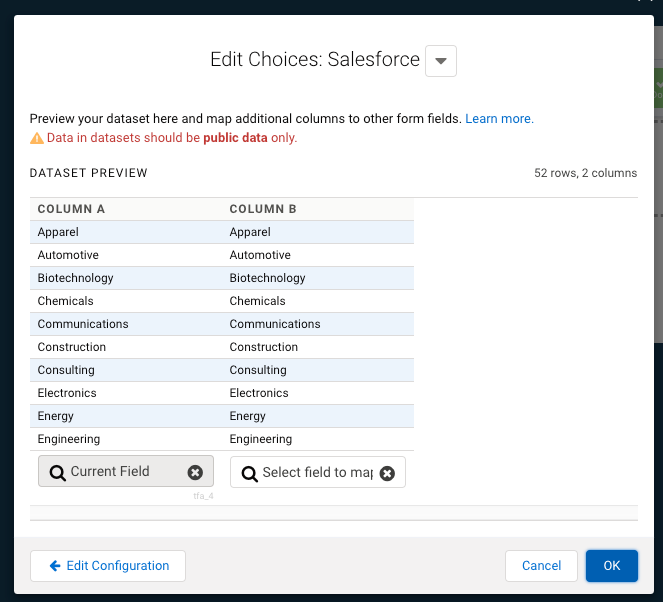
- Click OK to save your Salesforce Dynamic Picklist
- Save your form
Salesforce Object Lookup (Basic)
- Choose Salesforce Object Lookup (Basic) from the Get choices from dropdown
- Select a Salesforce Object from the Lookup Salesforce Object dropdown
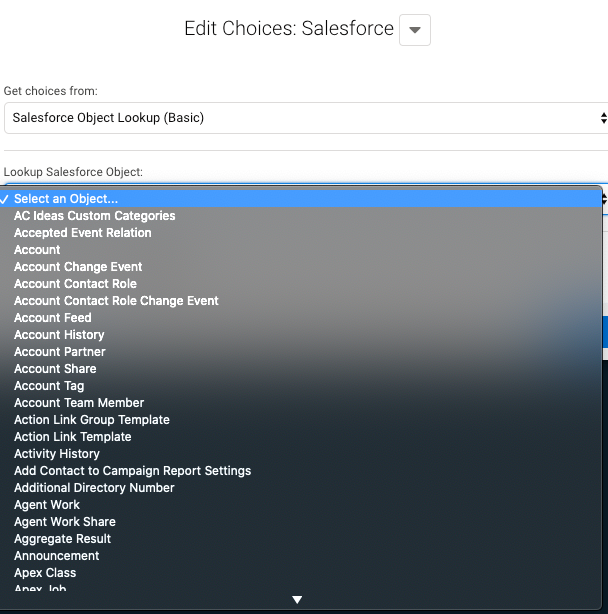
- Choose your field(s) in the Return the following field(s) dropdown
- When adding multiple fields to this section, the first field returned is the one shown in the dynamic picklist. Any other fields that are returned can be used to fill in other fields on the form.
- Add conditions and sorting specifications, if needed
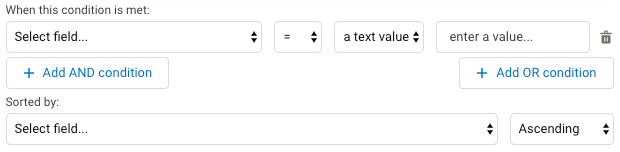
- Choose to Enable or Disable the Allow Free Responses toggle
- If you'd like to allow respondents to enter information into your Salesforce Dynamic Picklist, select Enable.
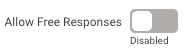
- If you'd like to allow respondents to enter information into your Salesforce Dynamic Picklist, select Enable.
- Choose to Enable or Disable the Refresh Salesforce Connection toggle
- Enabling this toggle will allow the Salesforce connection to refresh (thereby clearing the cache) to ensure that previously selected values in a dropdown do not display again when the form is loaded at a later time.
- Click Next
- You'll now see a preview of the data retrieved in your Salesforce Dynamic Picklist
- On this page, you may map any additional returned fields to the form fields you want them to go to.
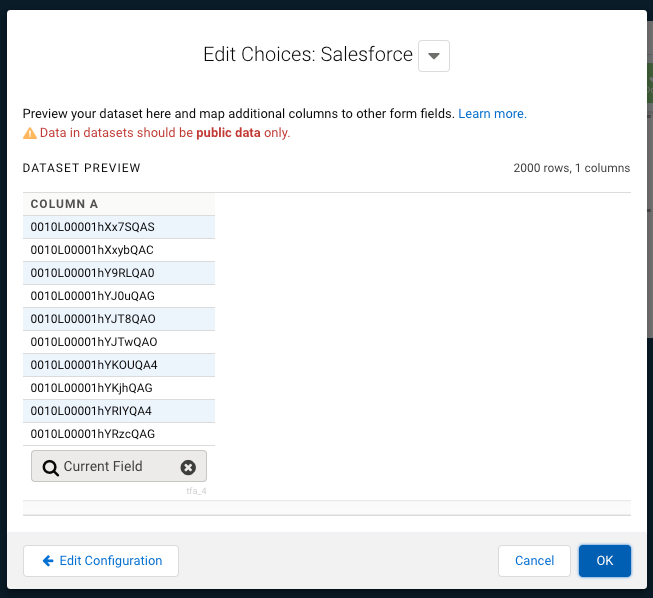
- On this page, you may map any additional returned fields to the form fields you want them to go to.
- Click OK to save your Salesforce Dynamic Picklist
- Save your form
-
Choose "A Text Value"
-
Enter the field alias of your dynamic picklist wrapped in %%
-
For example: %%tfa_###%%
-
Replace ### with the field alias number on your form
-
-
-
Click Next and then OK
Salesforce Object Lookup (Advanced)
- Choose Salesforce Object Lookup (Advanced) from the Get choices from dropdown
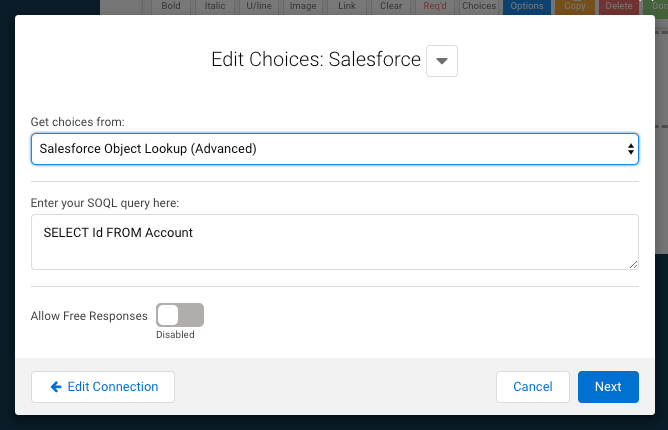
- Enter your SOQL query in the text field
- Choose to Enable or Disable the Allow Free Responses toggle
- If you'd like to allow respondents to enter information into your Salesforce Dynamic Picklist, select Enable.
- Choose to Enable or Disable the Refresh Salesforce Connection toggle
- Enabling this toggle will allow the Salesforce connection to refresh (thereby clearing the cache) to ensure that previously selected values in a dropdown do not display again when the form is loaded at a later time.
- Click Next
- You'll now see a preview of the data retrieved in your Salesforce Dynamic Picklist
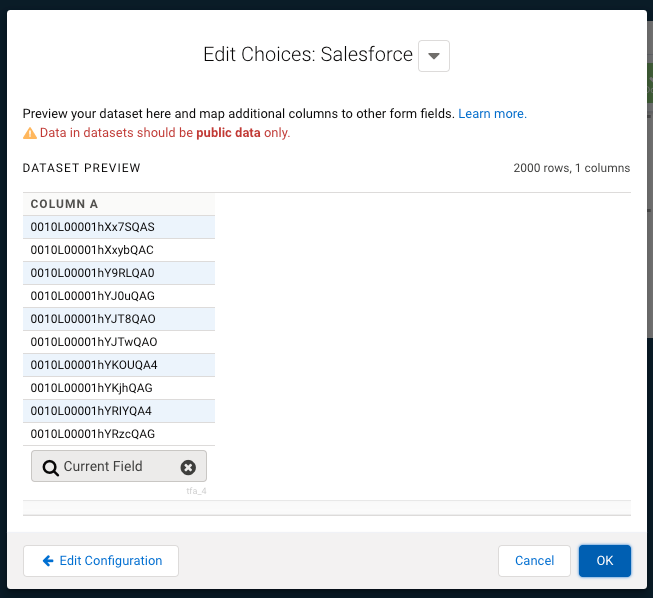
- Click OK to save your Salesforce Dynamic Picklist
- Save your form.
Salesforce Dynamic Picklist Limits
- Salesforce Dynamic Picklists cannot be used in conjunction with conditional questions or menu dependencies.
- Salesforce Dynamic Picklists cannot be conditioned on Checkboxes, Radio Buttons, Drop-Down Menus, or Multi-Select List fields at this time.
- For forms shared with the Collaboration feature, only the creator of the Salesforce Dynamic Picklist can edit the picklist configuration.
- Salesforce Dynamic Picklists do not currently have a limit on the number of values they will pull in.
- Salesforce Dynamic Picklist fields that are populated by restricted picklist fields in Salesforce will not work correctly if:
- the values are set via custom code
- the value is a calculated value
-
Prefilling over 2000 records may cause slower-than-normal loading times and affect form performance. We recommend adding additional criteria to narrow down prefill results or using more than one field to show your results.
-
Additionally, we recommended a maximum of 50 Salesforce Dynamic Picklists prefilled on a form.
-
Please keep in mind that there is also a Salesforce API call limit that may impact your findings. For more information on your account-specific API call limits, please refer to Salesforce.
- Salesforce Dynamic Picklists now have the option of restricting values. You'll be able to toggle the switch to allow or not allow outside values from respondents.
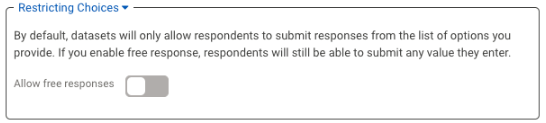
- In the dropdown list on the live form, you will see the first 100 results until you define the query further by typing in a letter.
- Example: Your list has 200 countries. When you look at the form, it will show the first 100 of the list. If you type in the letter 'A', it will show the first 100 items that start with 'A'.