
Introduction
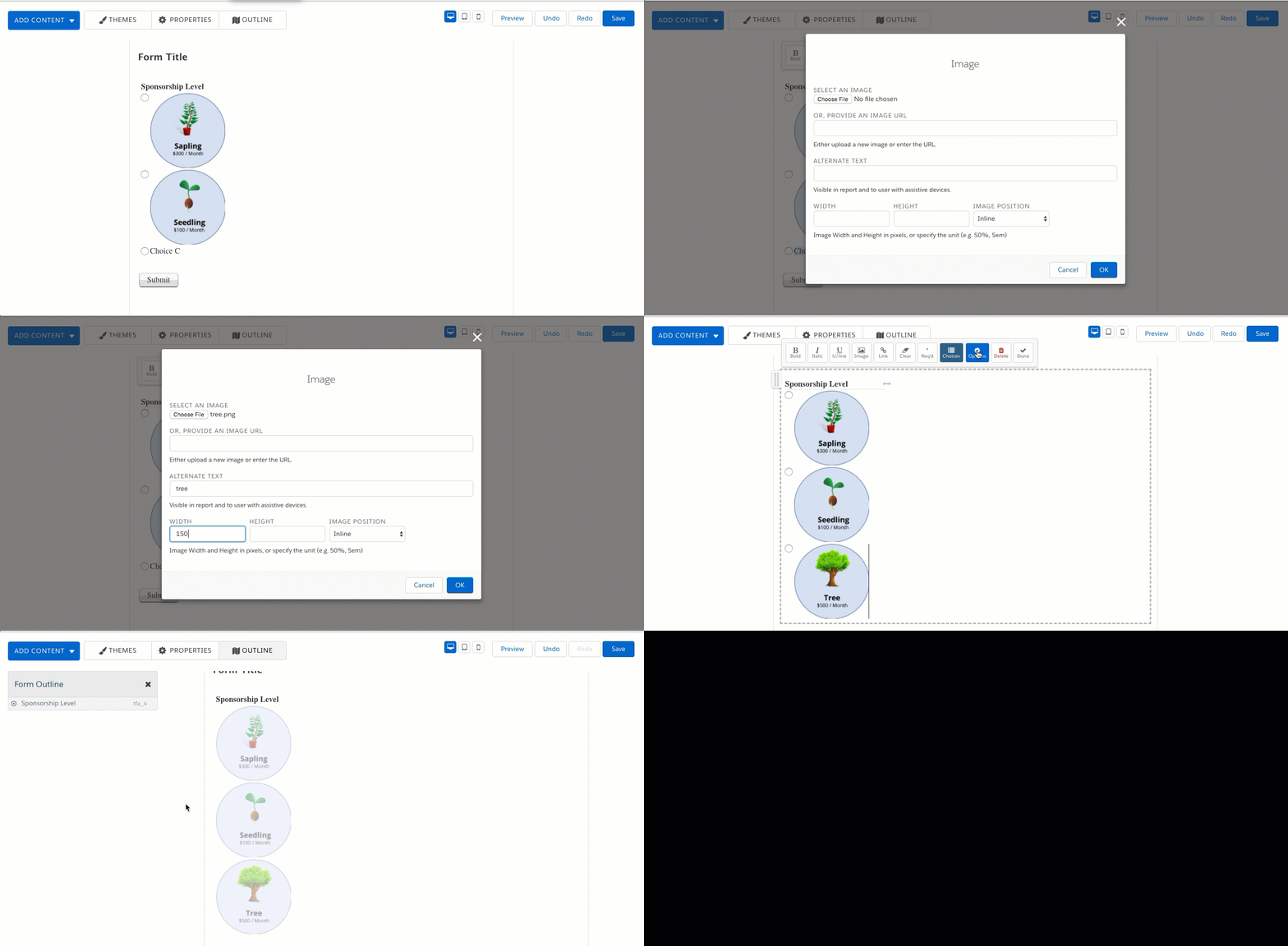
Engage your users by using images as choices on radio button and checkbox questions. You can have your users make a selection by using the traditional boxes, or by removing them all together so they can click directly on the image.

Replace Text with an Image
- Add a radio button or checkbox question to your form.
- Select a choice.
- Click Image and choose an image to upload.
- Provide alternate text for your image. This text will display if the image does not display properly, but it is also used in other areas of FormAssembly.
- Define the width and/or height of the image.
- Change the image alignment, if needed.
- Click Insert.
Masking
You can choose to mask the radio button or checkbox when replacing the choice text with an image. The images themselves will then act as buttons that users can select.
This can make for a better user experience in some cases. For instance, if the image meanings are clear and understandable, masking could be a good choice. However, if you would like to show the images in full color at all times, masking is not a good choice because the options that are not selected will be grayed out.
- Select the entire radio button or checkbox field
- Click the Options button
- Click on the Presentation tab to expand it.
- Select Mask checkbox/radio buttons
- Click Done.