
Introduction
Address Autocomplete is a multiple-choice field that pulls a list of possible addresses into the form as a respondent starts to type in their address. Addresses are populated using the Google Places API.
Address Autocomplete will enter the respondent’s Street Address, City, Zip/Postal Code, State/Province, and Country after they select their address from the results returned. This feature is optimized for USA address formats, so international addresses may not work as expected.
Set up Address Autocomplete
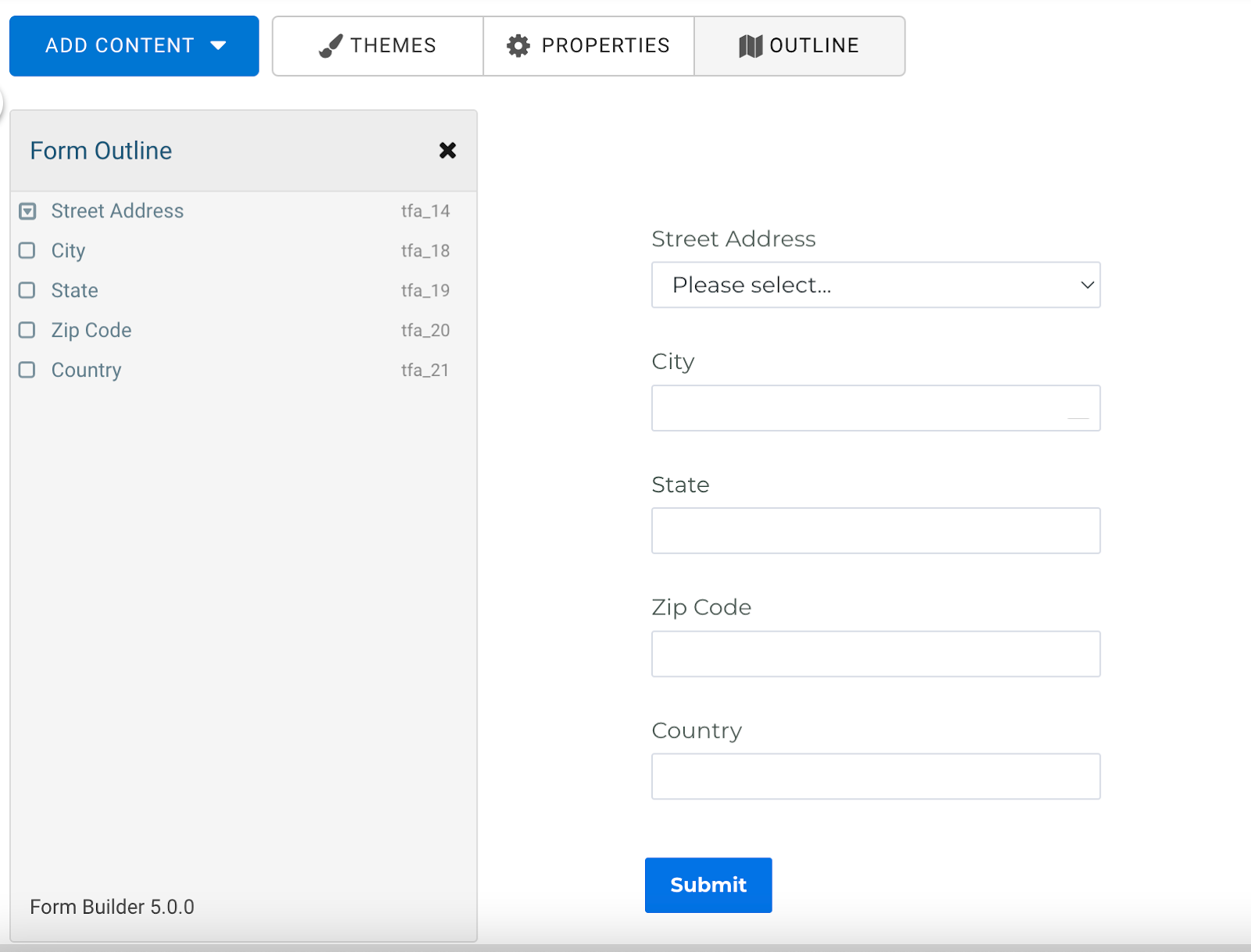
- Add a drop-down menu field to your form. This will be where the street address is entered.

- Add four additional text input fields to your form for the City, State, Zip Code, and Country.
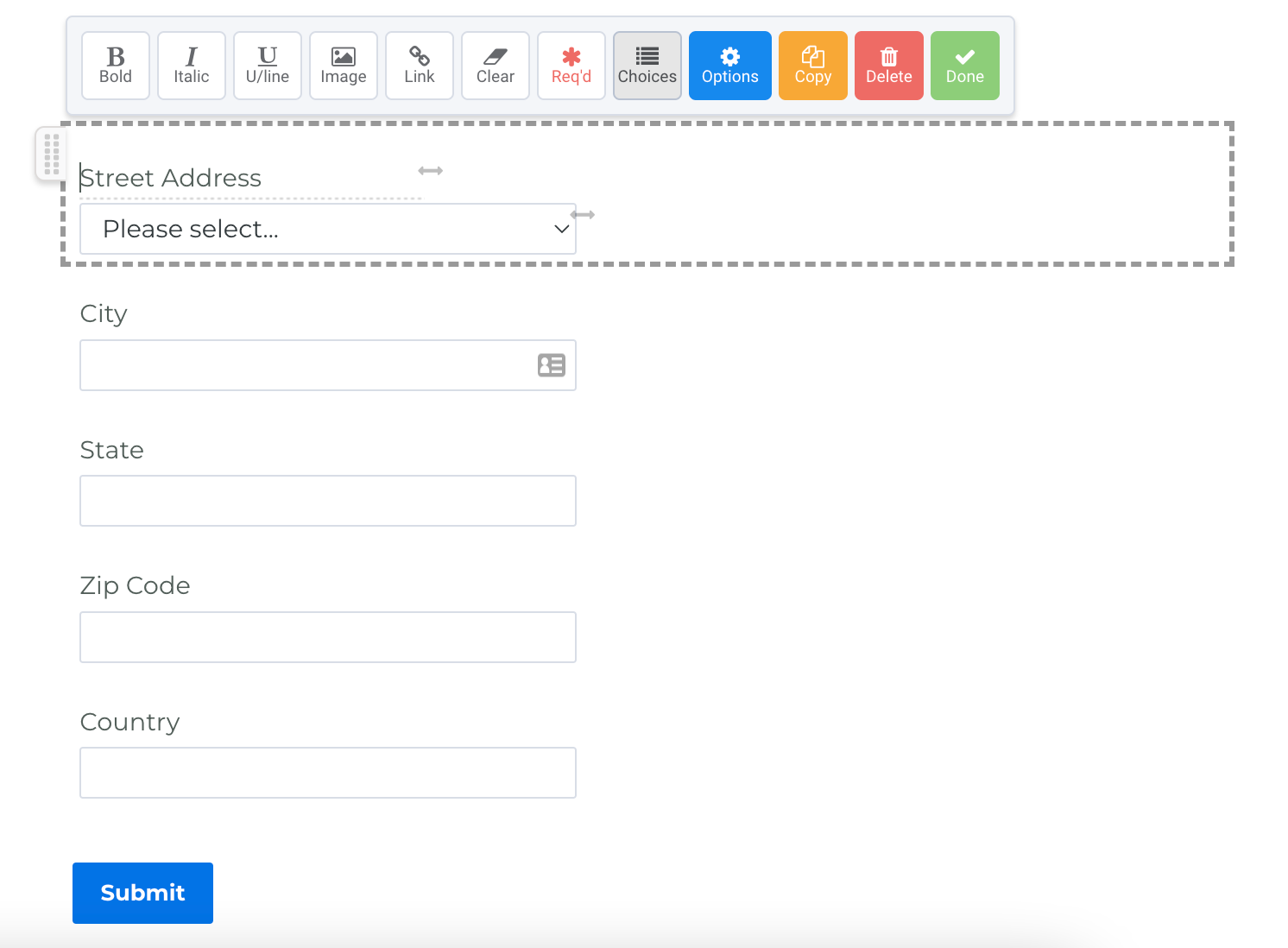
- Click on the drop-down menu and select Choices from the options bar.
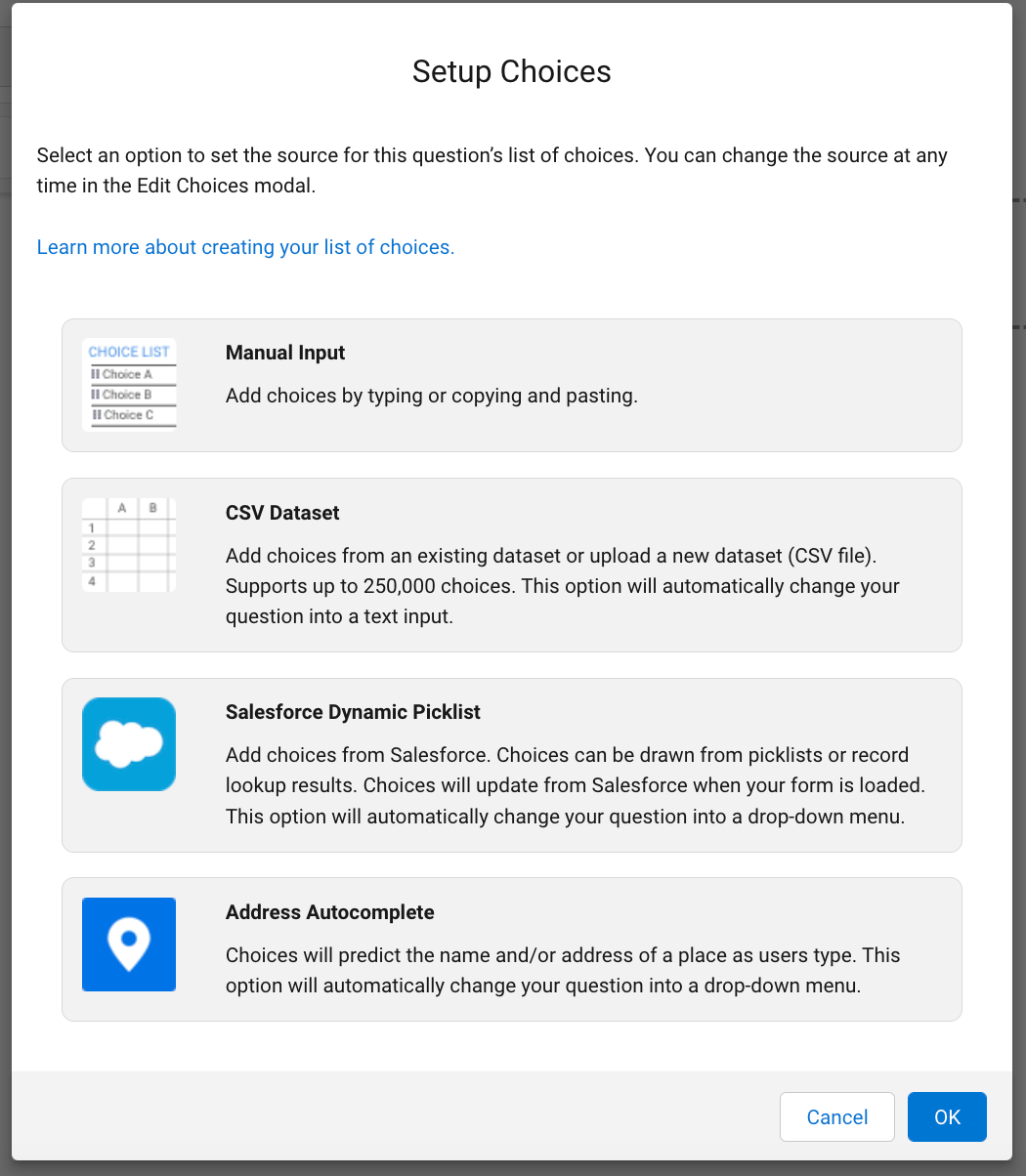
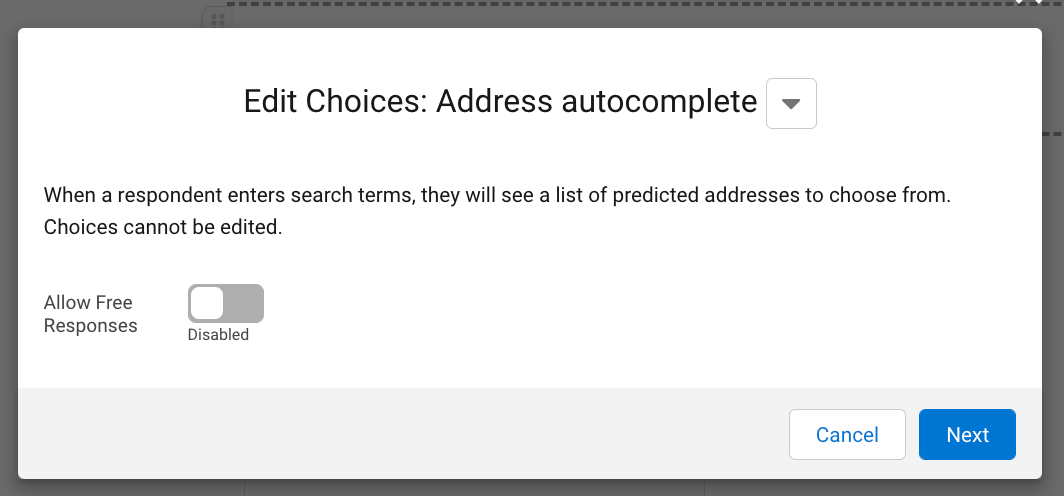
- Select Address Autocomplete
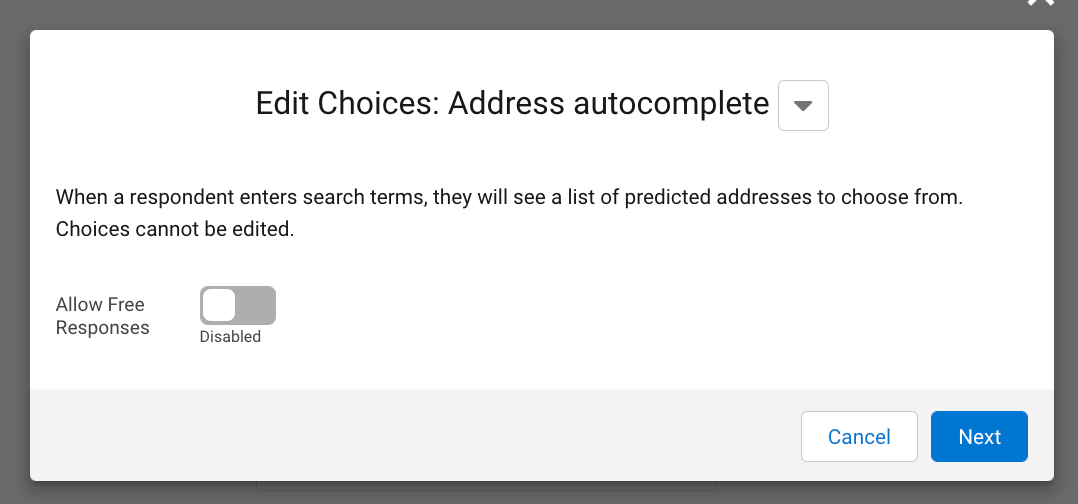
- Click Next.
- For each provided column, select the related field in your form. The details in the column will populate the selected field when an address is chosen by the respondent.

- Click Ok to save your field setup.
- Save your form.
Address autocomplete has the option of restricting values. You'll be able to toggle the switch to allow or not allow outside values from respondents. This setting will determine if a respondent can manually enter their address or if they have to select an address from the list of returned addresses.
Address Autocomplete Limits
- Address autocomplete cannot be limited to returning only specific country addresses.
- Address autocomplete cannot be limited to a respondent’s IP address.
- Address autocomplete renders in LIVE mode, so it cannot be seen in Preview mode on the Form Builder.